---
title: "How to display a progress bar in Jupyter Notebook"
description: "Display a progress bar with no additional dependencies, just Python + Jupyter Notebook"
author: "Bartosz Mikulski"
author_bio: "Principal AI Engineer & MLOps Architect. I bridge the gap between \"it works in a notebook\" and \"it works for 200 million users.\""
author_url: https://mikulskibartosz.name
author_linkedin: https://www.linkedin.com/in/mikulskibartosz/
author_github: https://github.com/mikulskibartosz
canonical_url: https://mikulskibartosz.name/how-to-display-a-progress-bar-in-jupyter-notebook
---
Usually, when we run long computations we include some print statements like this one:
```
number_of_elements = 1000
for i in range(number_of_elements):
if i % 100 == 0:
print(i)
time.sleep(0.01) #Here should be the code that does the computation.
print('Done')
```
We end up with something similar to this output:
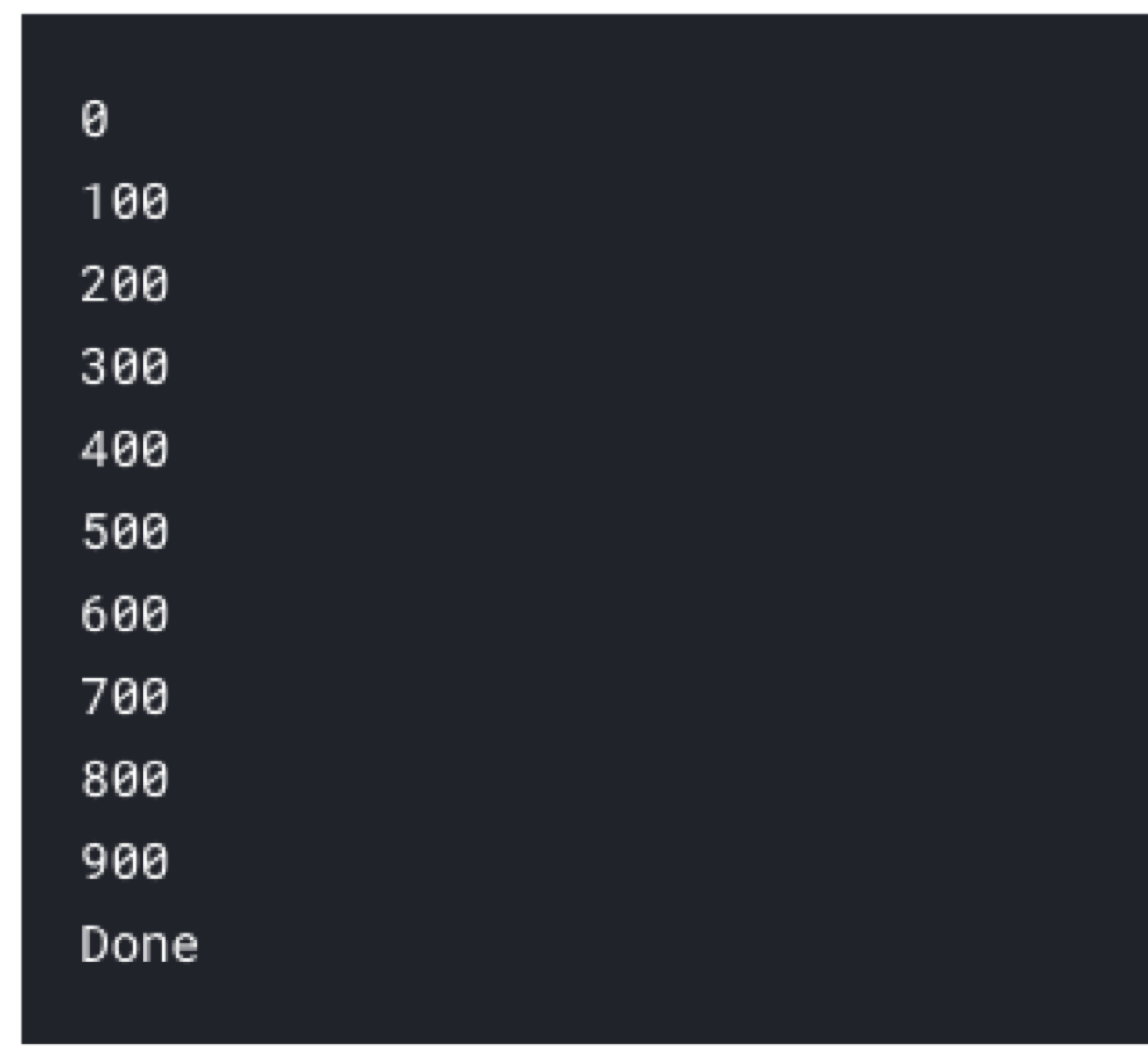
We do it because we wonder whether the Notebook is still running. We want to see the progress. That is sufficient, but it does not look good, does it?
What if we could display a progress bar? We can!
Here is the code:
```
import time, sys
from IPython.display import clear_output
def update_progress(progress):
bar_length = 20
if isinstance(progress, int):
progress = float(progress)
if not isinstance(progress, float):
progress = 0
if progress < 0:
progress = 0
if progress >= 1:
progress = 1
block = int(round(bar_length * progress))
clear_output(wait = True)
text = "Progress: [{0}] {1:.1f}%".format( "#" * block + "-" * (bar_length - block), progress * 100)
print(text)
```
And now, when we run the computation we see a nice progress bar ;)
```
number_of_elements = 1000
for i in range(number_of_elements):
time.sleep(0.1) #Replace this with a real computation
update_progress(i / number_of_elements)
update_progress(1)
```

The solution is based on Philip Osborne’s blog post and an answer to the StackOverflow question.